Meet the New LinksManagement: What’s Changed and How to Use It
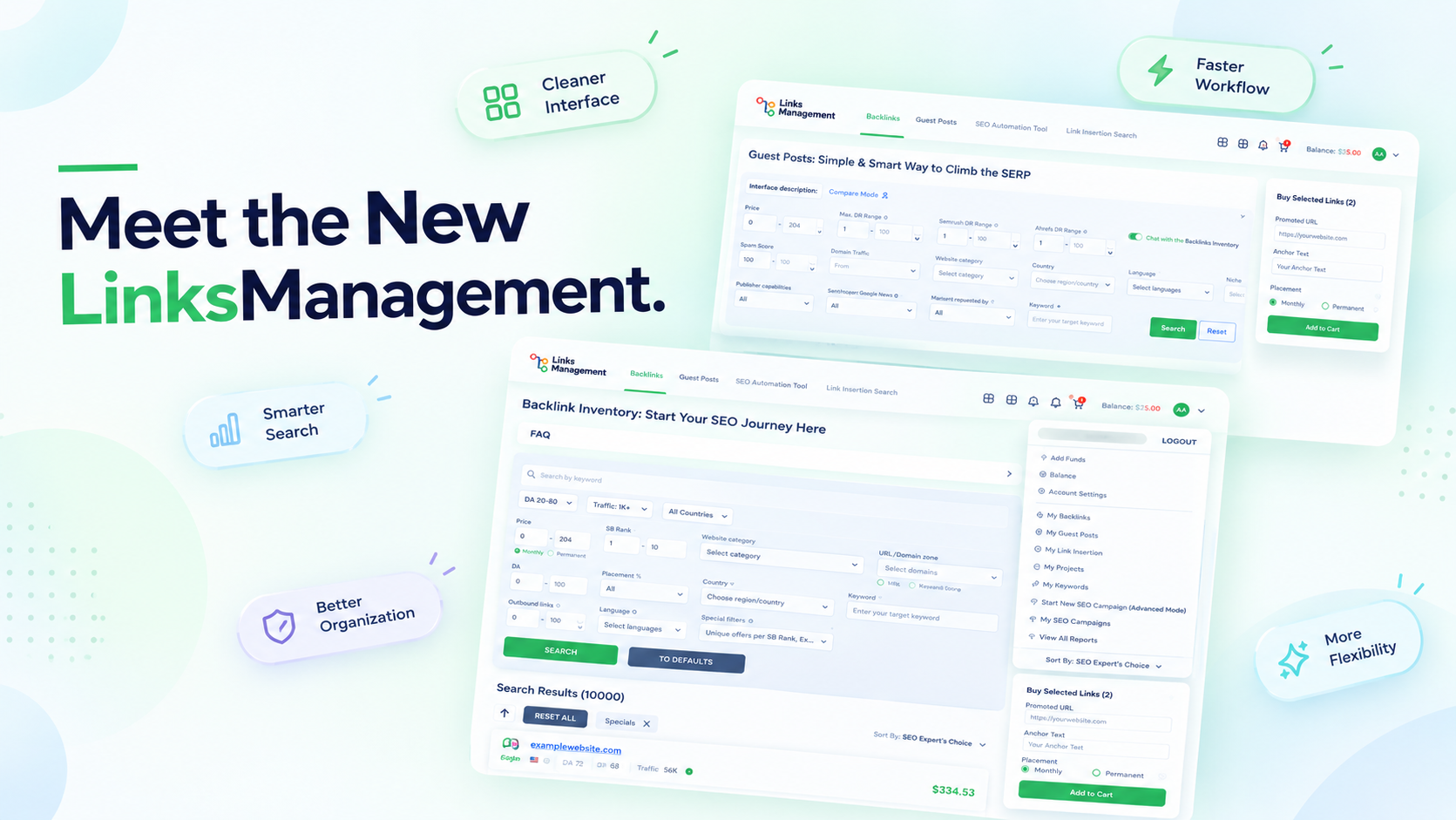
Link building shouldn’t be hard and time-consuming. That is why we constantly improve the LinksManagement products to give you the best up-to-date solutions and make your workflow smoother. This time, we completely refreshed and redesigned the platform and added a new product — Link Insertions that allows you to insert links naturally in already indexed pages.
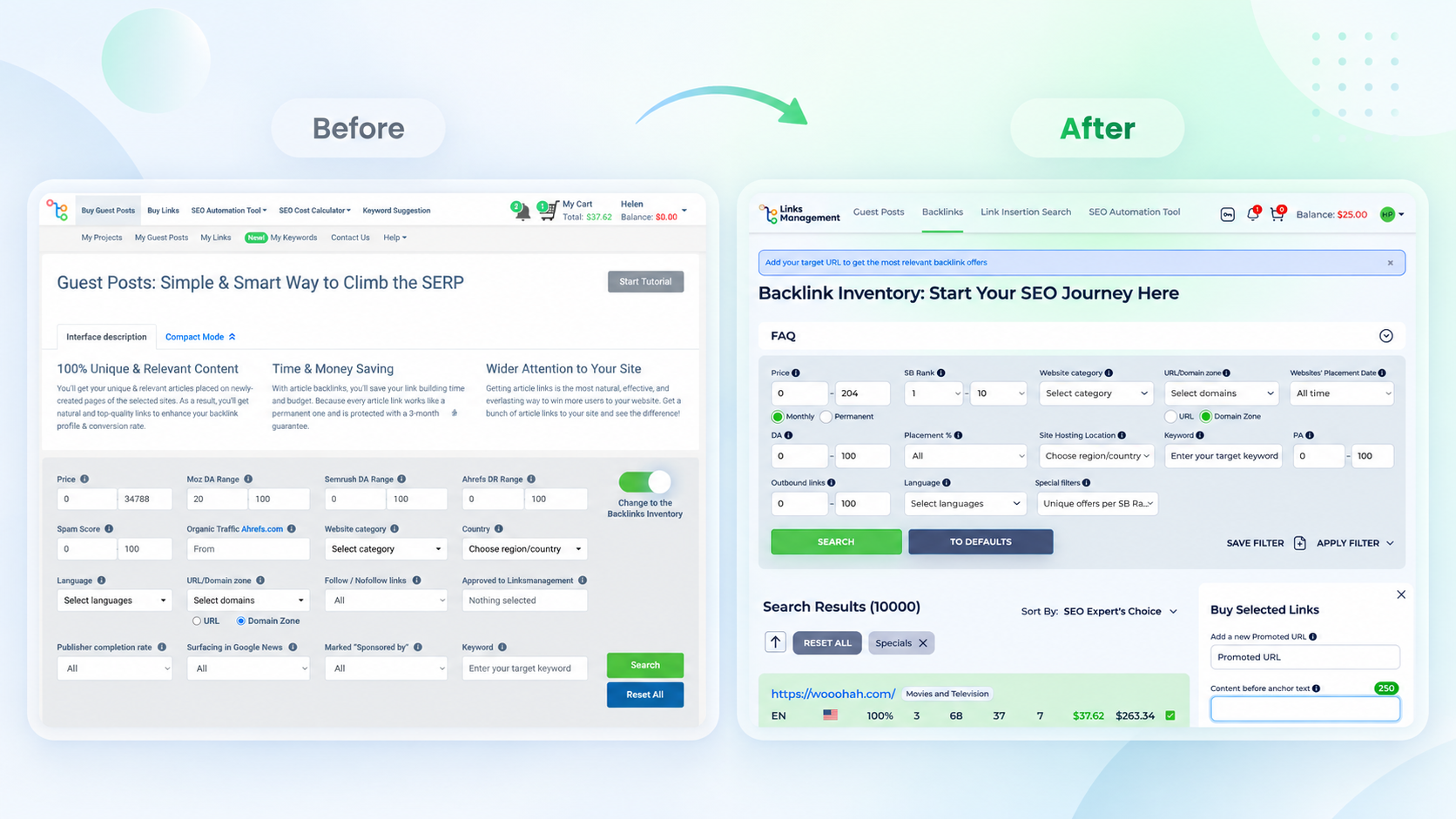
In this guide, we gather what’s new and how it will help you make your workflow easier and more convenient.
Contents
The navigation got a lot simpler
The old menu had multiple layers, which required a lot of clicks just to find the page you need. We’ve decided to make it easier and replaced it with one flat navigation bar at the top of the page. Now you will see 3 main products: Guest Posts, Backlinks, and the new one — Link Insertion Search. All of them are just one click away. Choose easily and switch between them in seconds.
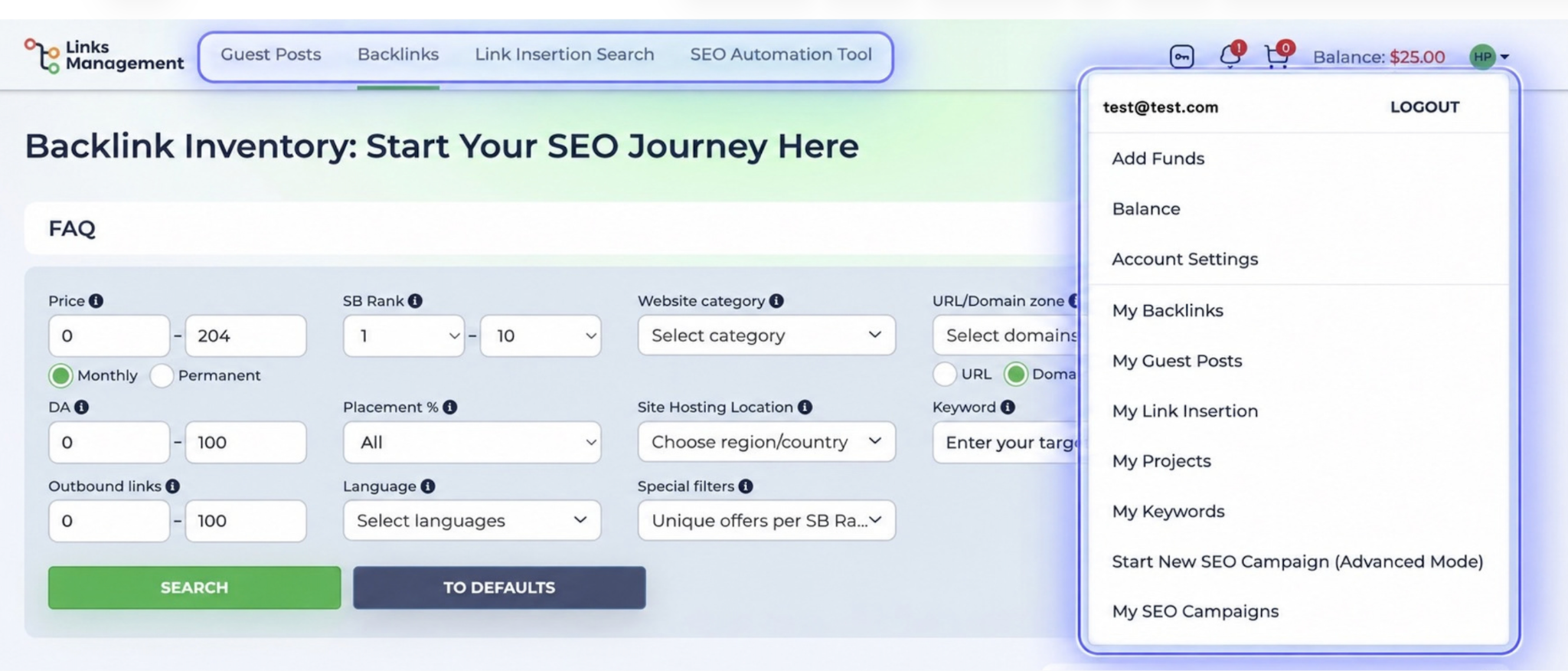
At the top-right corner is now a small toolbar with your Balance, Notifications, and your cart. Also, you will see a new key icon, which redirects you to the SEO Keyword Suggestion page.
Tabs such as My Projects, My Keywords, Reports, and SEO Campaigns, which used to be at the top of the screen, have now moved and been grouped into your profile dropdown. So you can easily choose the page you want without endless clicking or scrolling.
FAQ sections became smaller and smarter
Earlier, every product page used to have this big block of educational content sitting above the filters and results, regardless of whether it is needed or not. We turned that into a dropdown FAQ block right under the page title.
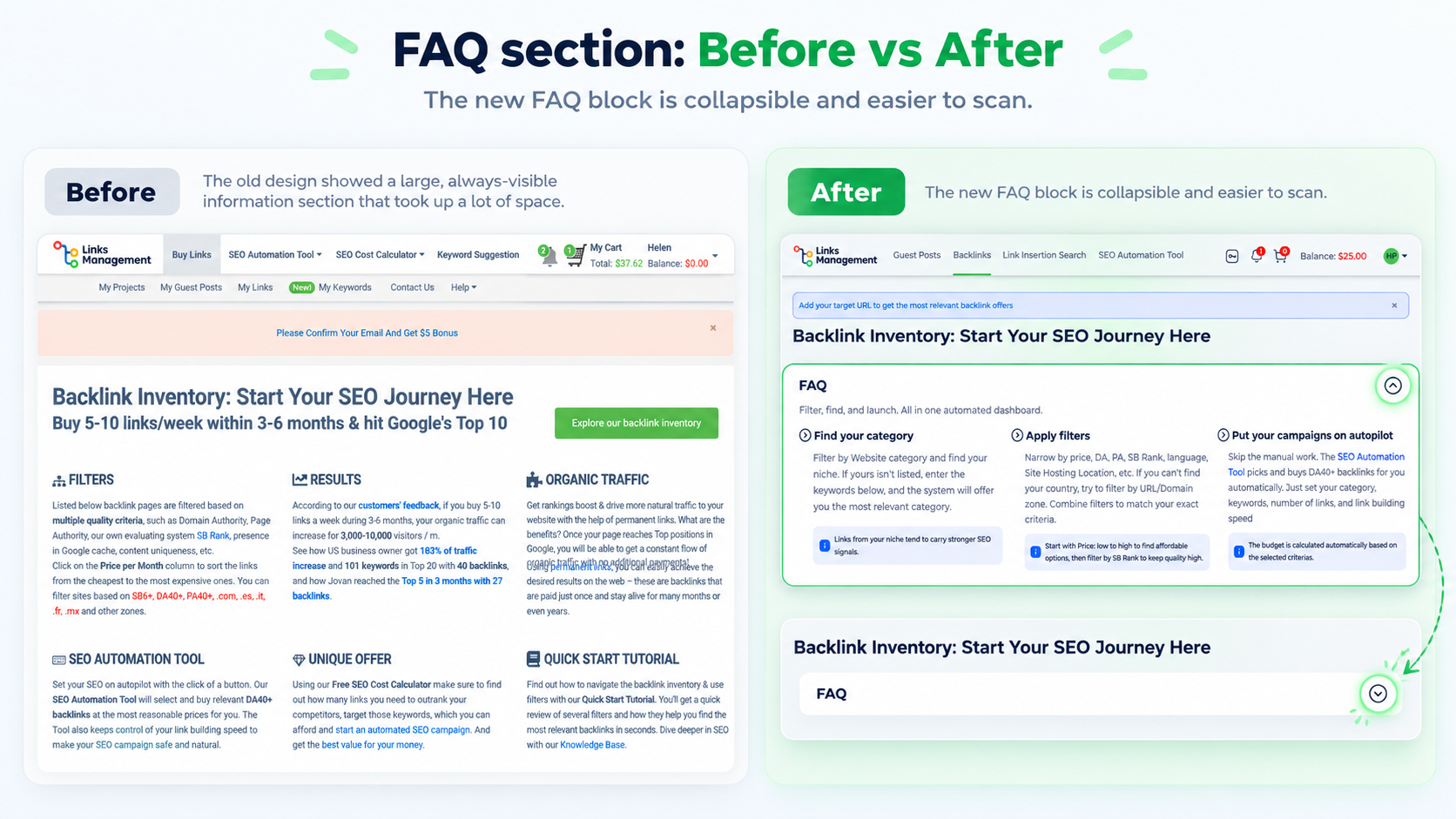
Just click it open when you actually need a tutorial or collapse it when you don’t. Now your screen stays focused on your actual work instead of getting pushed down by paragraphs you’ve already known.
The site results list got a lot easier to read
The old results list was mostly plain text, which got hard to scan. Now the results list for every product shows up as a card with small icons next to the key numbers: country, total and organic traffic, spam score, DR/DA range, etc.
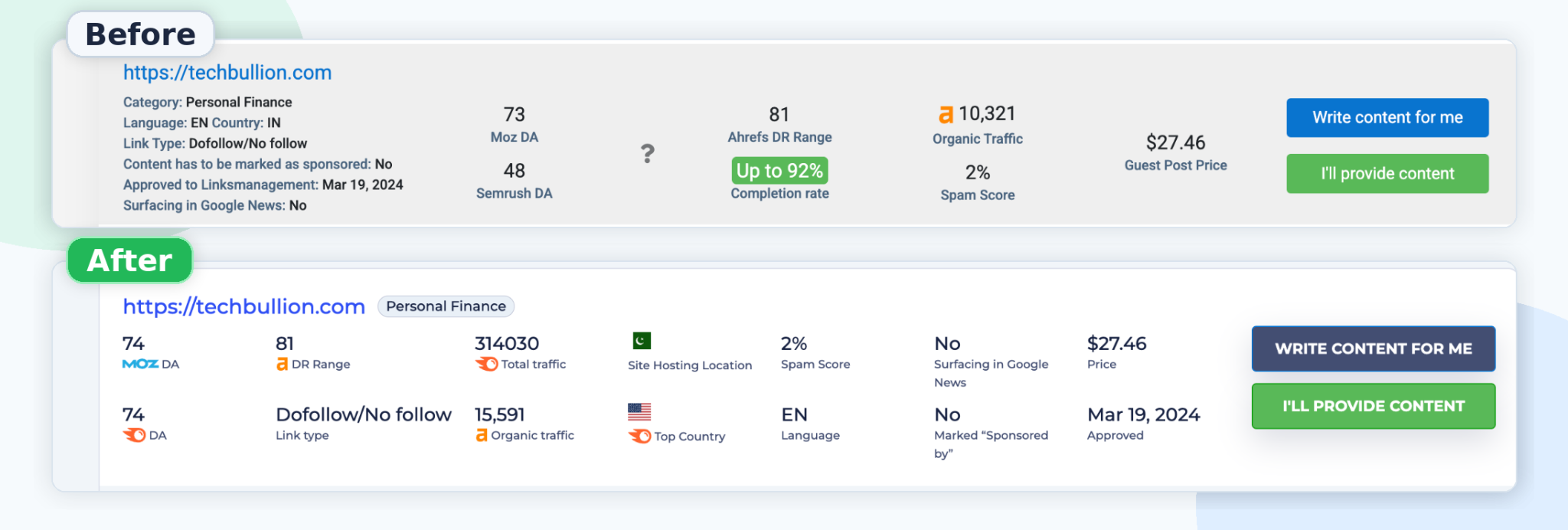
That helps to explore results in a few seconds instead of wasting time reading it line by line. Site categories, like “Business news” or whatever niche a domain falls under, show up as small rounded tags next to the domain name instead of being buried in a description somewhere.
Link Insertion Search just went live
We didn’t stop at the navigation changes only and added a completely new product – Link Insertions. That means your link is naturally inserted into an existing article that’s already published, already indexed by Google, and already pulling in traffic. You can get more information about this product and how to work with them in the new FAQ block.
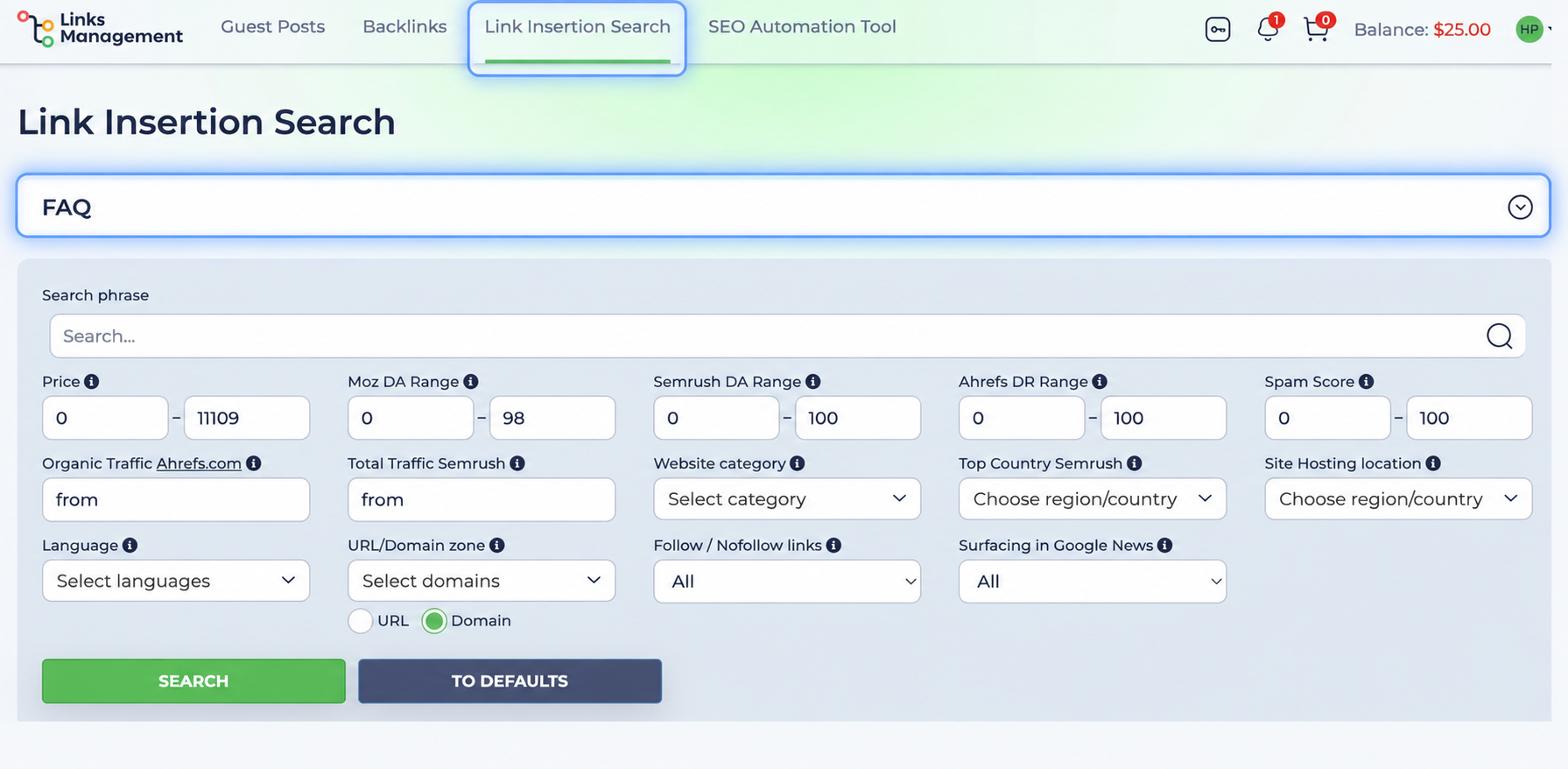
Why is it a good choice? Because placing links on pages that already have history and traffic tends to show better results in search.
How to find the right site for link insertion
The first thing you’ll notice is a keyword search bar. Enter a keyword, and the system will show you the most relevant pages where your link fits naturally.
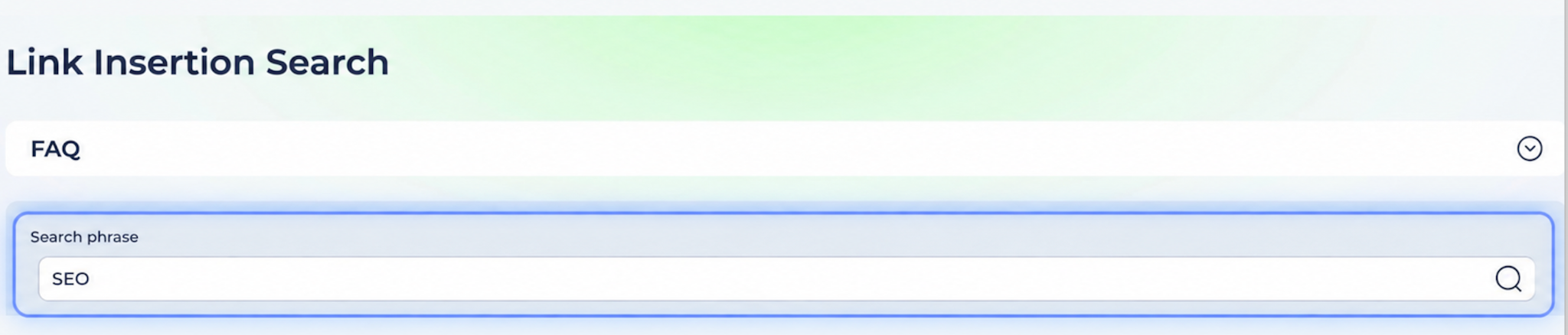
You can search by filters alone or enter a specific URL to find exact placement opportunities. There are 10+ advanced filters to help you find the most relevant opportunities:
- Moz DA
- Semrush DA
- Ahrefs DR
- Spam Score
- Organic Traffic (Ahrefs)
- Follow/Nofollow
- Surfacing in Google News
- Country
- Language.
Choosing the exact page
When you apply your filters, you will see the list of sites with the best match to your request. You can notice that each site has a special topic relevance score (% site). It shows how close this domain is to the keywords you applied.
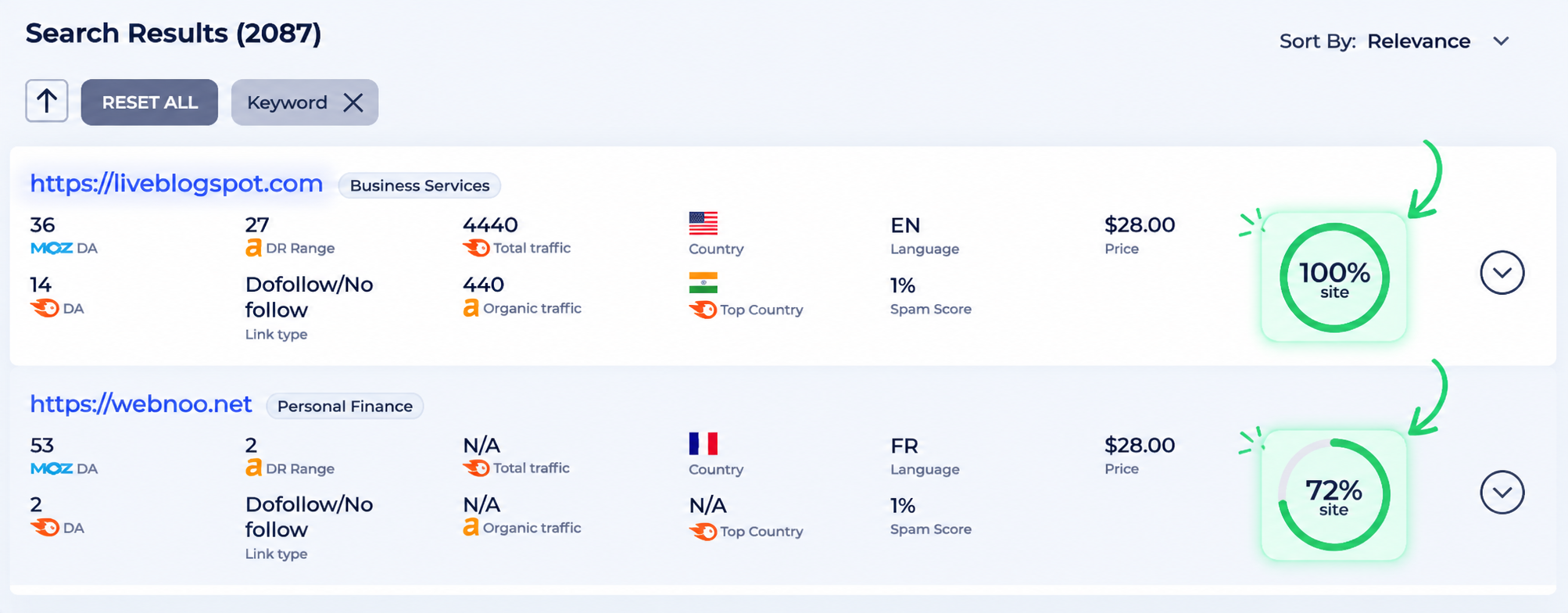
If you expand the chosen site, you will see individual pages: /home, /blog, /forum, /contact us. Each page contains a short content preview. It helps you to see where exactly your link will appear and whether the context makes sense, even before you make a final decision.
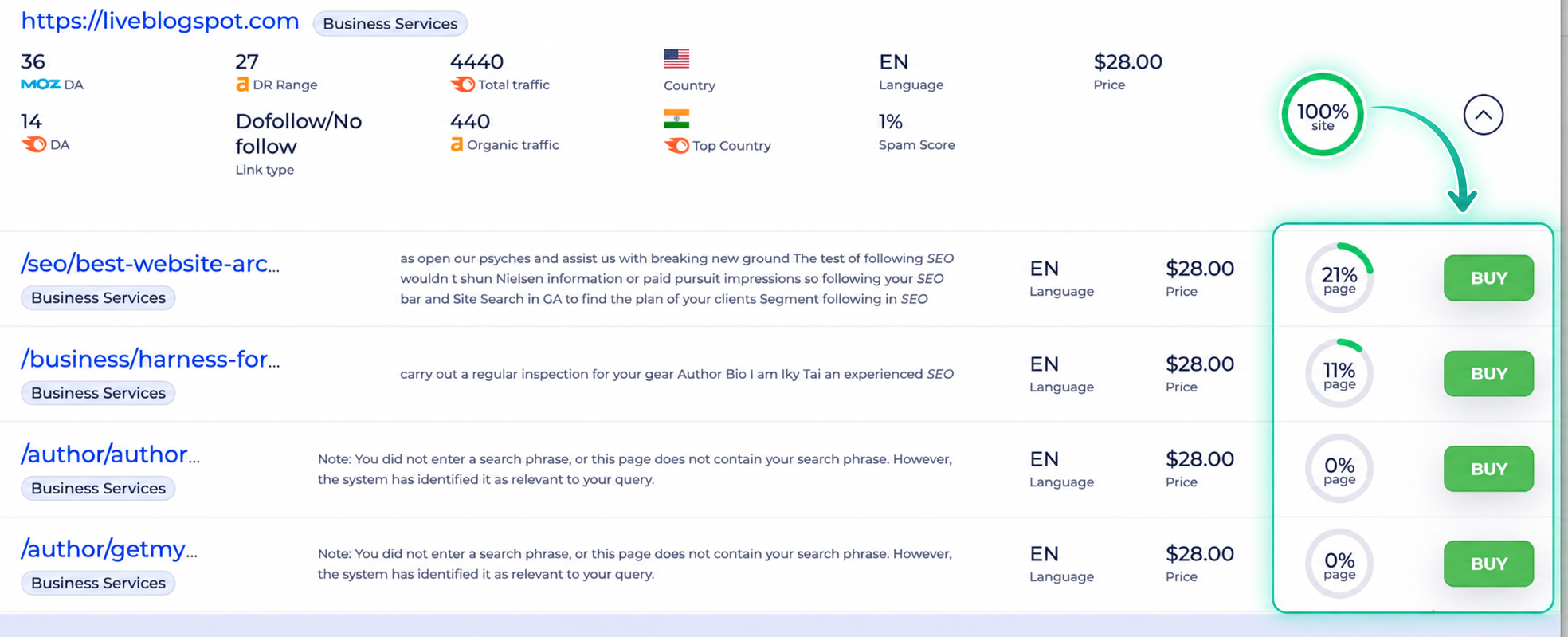
* For illustration purpose only
Pro tip: Сhoosing the page that best matches your content topic: /blog and /forum pages tend to be the most visited.
Placing your order
When you decide which page to choose, the confirmation screen with the key details will appear. It contains metrics like Ahrefs DR, organic traffic, and the exact URL where your link will appear.
The most important step is choosing the anchor. The system will show you real sentences from the article so you can pick the phrase for your link or even write another phrase from this page. You will also see the recommendation, which will help you make the right decision.
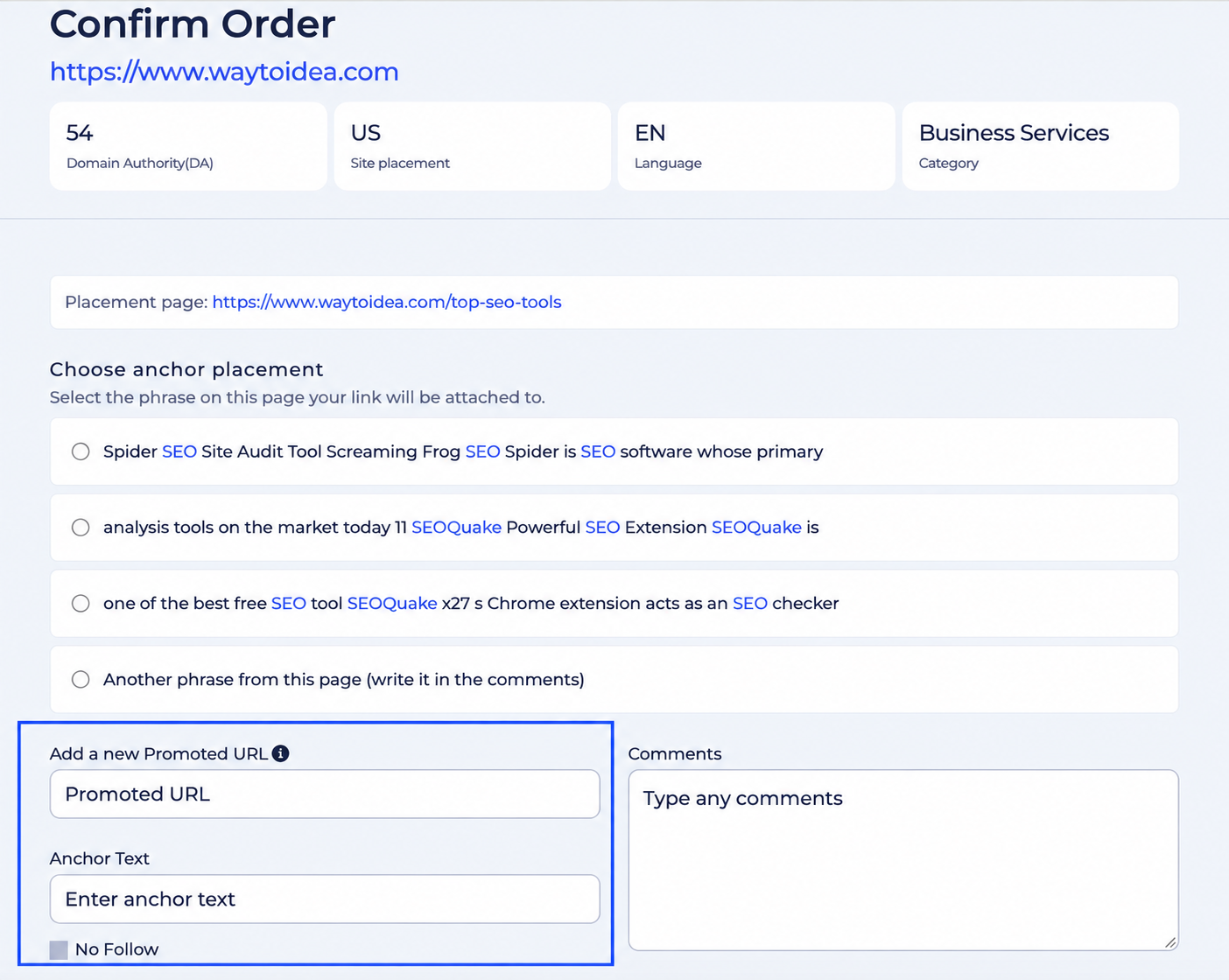
* For illustration purpose only
Then add your Promoted URL, anchor text, any comments if needed, and hit the Make Order button. That is it! Finally, you will see a confirmation page, and the manager will contact you soon.
Guest Posts got the same upgrade
The features and functionality remain untouched, but we also enhanced the design and usability to make your work easier. You can still find the same filters, including search by category or keyword, Moz DA / Semrush DA / Ahrefs DR, and many others to find sites that match your niche.
What’s different now? Filters look fresher, and results lists show up as cards instead of plain text.
After applying the filters, you will see the list of sites with 2 buttons: Write content for me, and I’ll provide content.
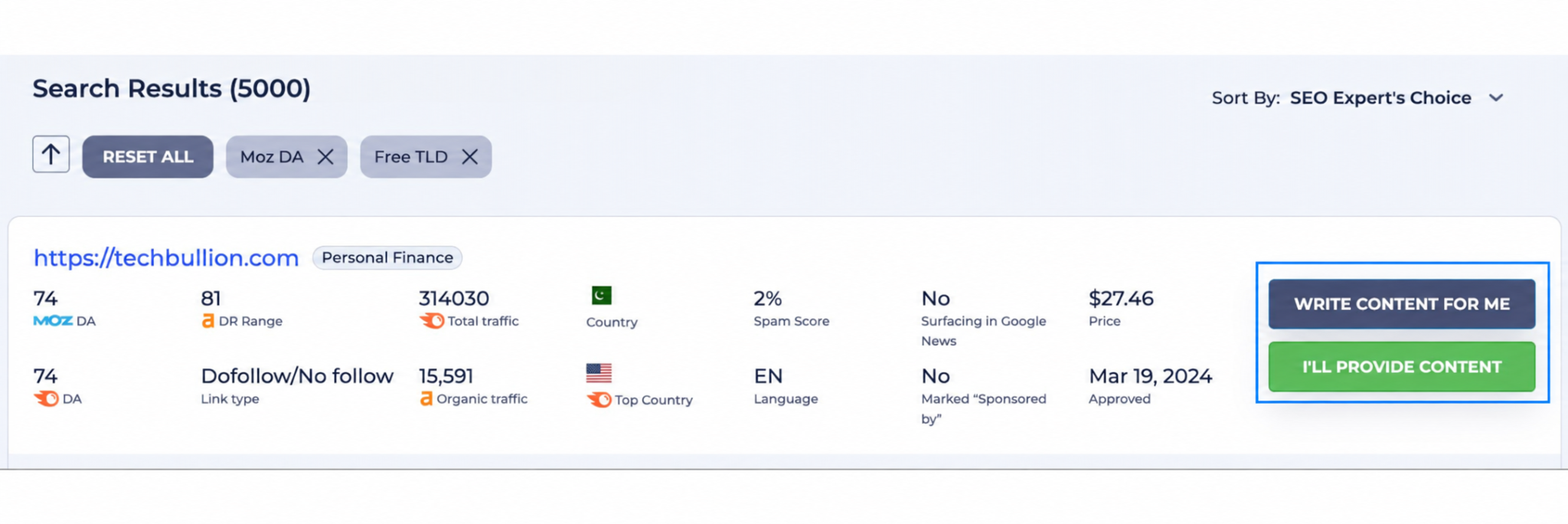
Write content for me: click this button if you want professional copywriters to write the article for you. In the new pop-up window, you will see the details of the site: Domain Authority, Language, and Category. You have to provide the URL you want to promote and the anchor text. Then choose the content length and fill in your special requirements. For example: subject, title suggestion, brief requirements, and references.
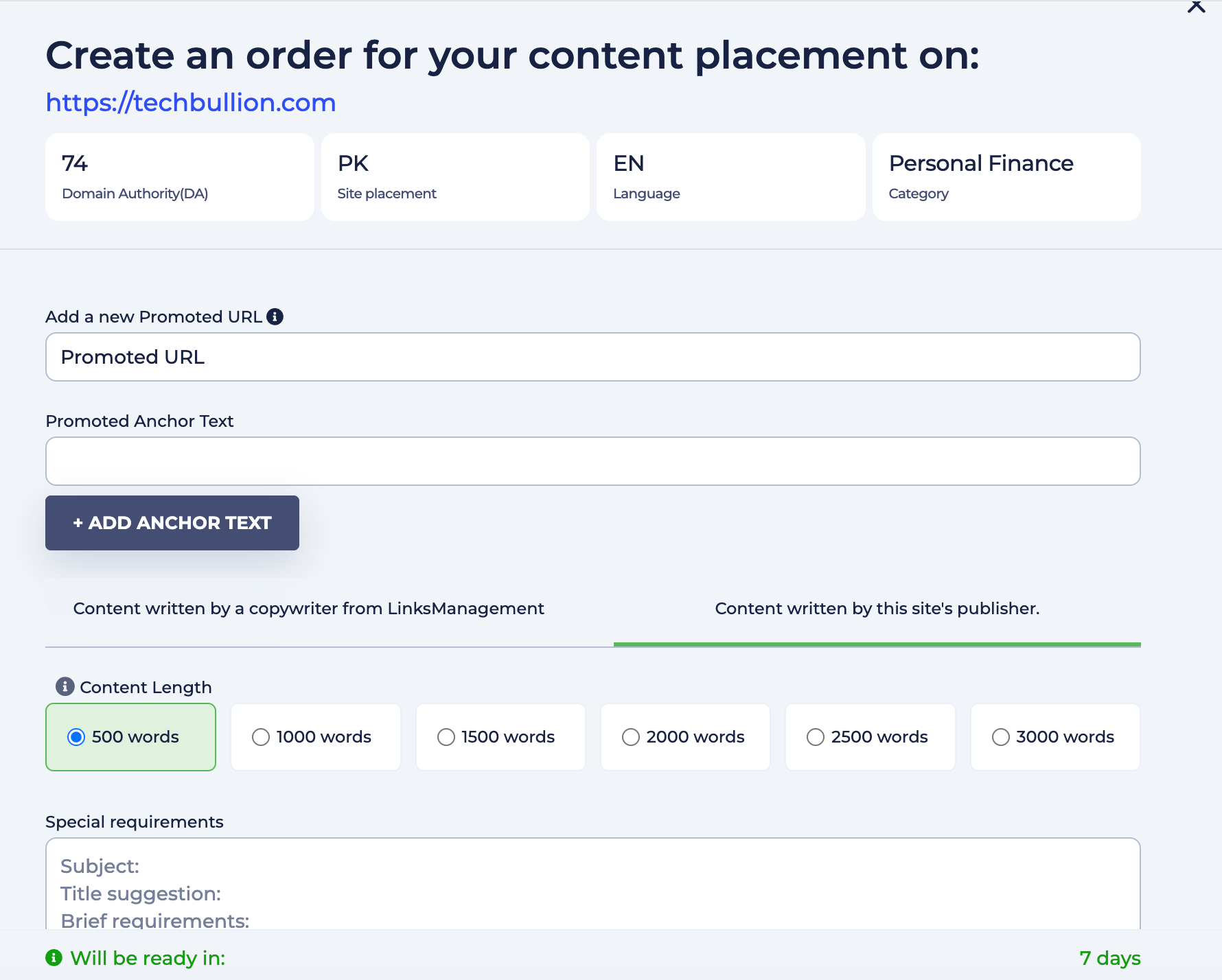
At the bottom, you will see the content price and placement price, as well as how many days the content will be prepared. If everything is okay, click the Place Order button. You will see the confirmation page, and the manager will contact you soon.
I’ll provide content: click this button if you have your own article. In the new window, you have to write the title and article text (from 500 to 3000 words). You will also see the requirements for your content. Please read it carefully: how many links are allowed to be placed, restricted categories, or any other notes from the site owner.
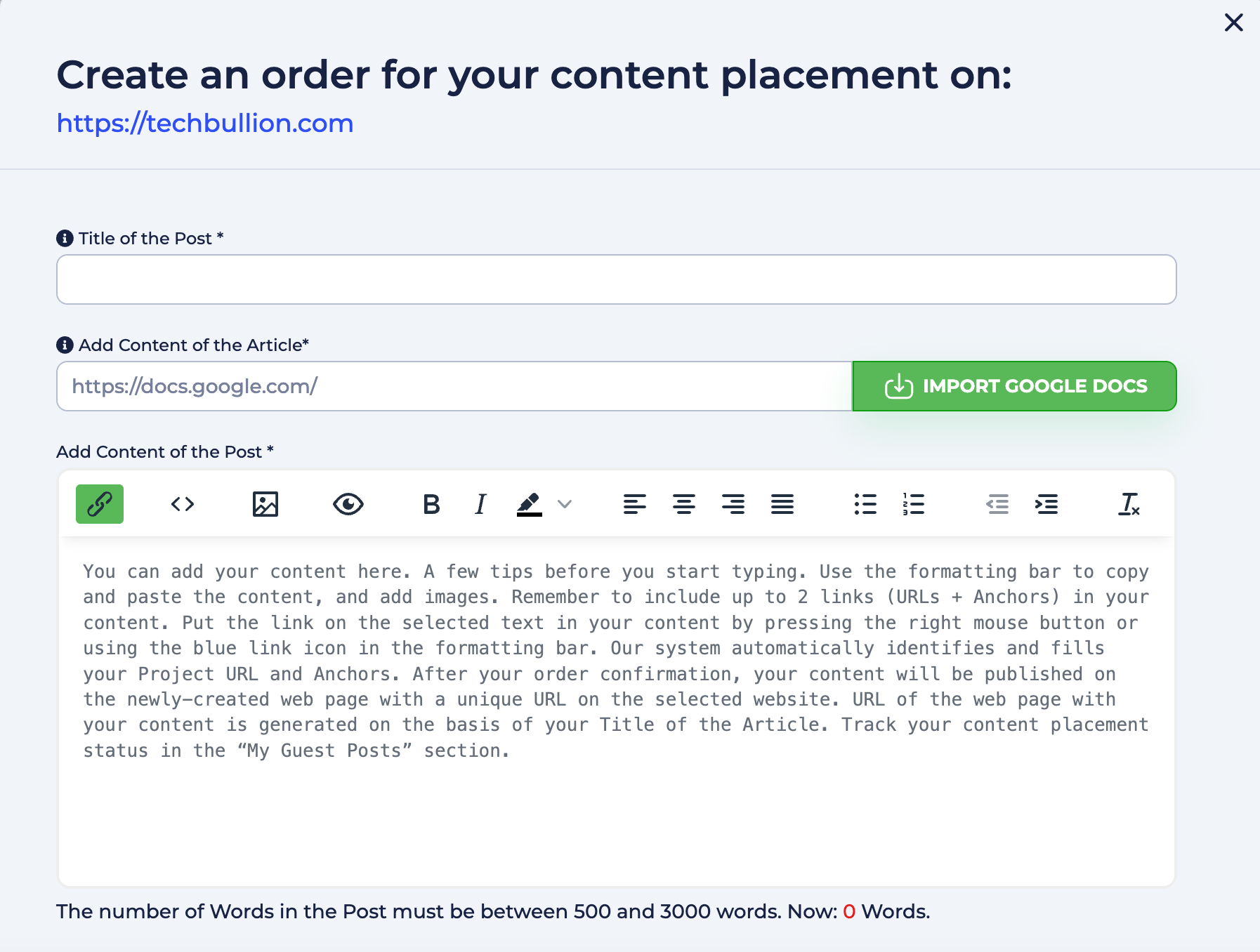
In the confirmation window, you will see all the details one more time. Just check the information, like the promoted URL, anchor, title, and click the Confirm Order button, or Save as draft if you want to come back to your order later.
Pro tip: Don’t underestimate the quality of your guests’ posts, because it shapes how people and search engines perceive your brand. If you don’t have ready-to-publish original articles, rely on our professional copywriters. We will assign you a task to a specialist with experience exactly in your niche.
Backlink Inventory has also changed
Same deal here: nothing about how you actually buy a backlink has changed. There are two types of placements on Backlink Inventory: monthly or permanent. And the same filters, including price, SB Rank, country, and outbound links, but in a new, more convenient design.
The site list result looks a little bit different and includes only the most important information you need for a decision: location, DA, PA, SB, and monthly or permanent price. Just pick a site and fill in the short form with your promoted URL, anchor text, and content before and after the link (use the Keyword Suggestion button if you need help), choose your link type, and add it to your cart.
The SEO Automation Tool got a redesign too
As you may know, LinksManagement allows you to put the process of getting links on autopilot with an SEO automation tool. We redesigned the page to make this process even easier and smoother.
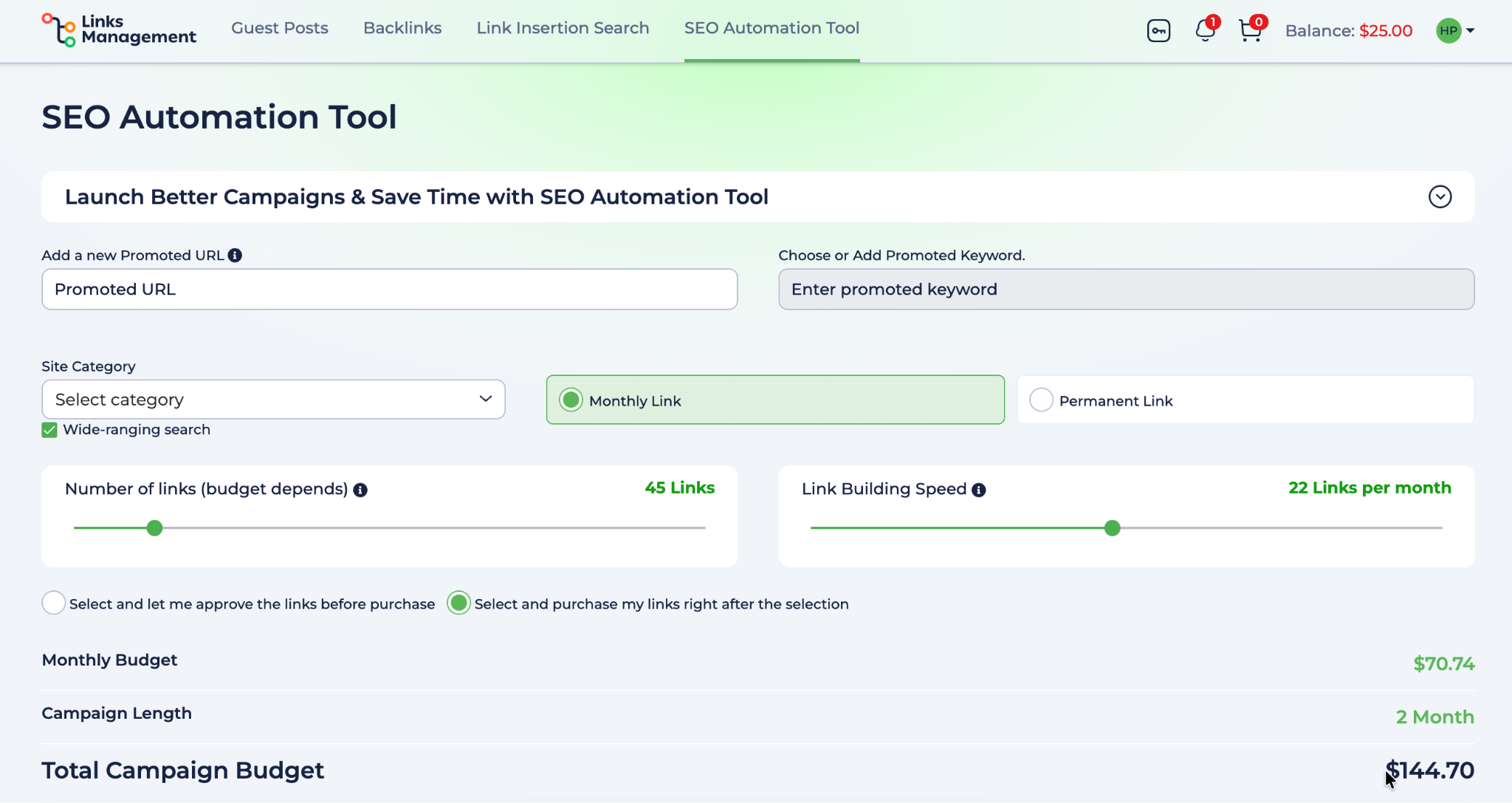
The tutorial has also moved to the top and become a dropdown. All you need is to add your promoted URL, enter keywords, select a category, choose a monthly or permanent placement option, select the number of links you prefer, and start your campaign. The system will automatically find relevant opportunities in your niche.
You can choose either to approve links before purchase and take full control, or allow purchasing right after the selection process.
Final words
Link building doesn’t have to be complicated. LinksManagement is designed to do it easily and efficiently, no matter what product you choose: backlink, inserting links into existing content, or publishing full articles as guest posts.
Choose products according to your SEO strategy, and don’t forget to use advanced filters to find the best sites in your niche and reach your audience. It will help you achieve your goals and increase your visibility over time.
Related Posts

Published May 27, 2025

Published May 13, 2025
Last updated Mar 27, 2024 | Published May 12, 2013

Published May 20, 2026

Last updated May 9, 2025 | Published Feb 18, 2025
Sign up now and start a managed content placement campaign.